> ## Documentation Index
> Fetch the complete documentation index at: https://docs.getdecisional.ai/llms.txt
> Use this file to discover all available pages before exploring further.
# Templates
> Use templates in Decisional to save time and automate repeatable workflows.
Decisional allows you to create [memos](https://docs.getdecisional.ai/welcome/memos) and [magic tables](https://docs.getdecisional.ai/welcome/magic-tables) using unstructured data connected to a knowledge engine called sources. You can use AI to generate cell values in a magic table or blocks in a memo manually or by using AI.
You can visit the templates section by going to `Templates` on the left navigation bar.
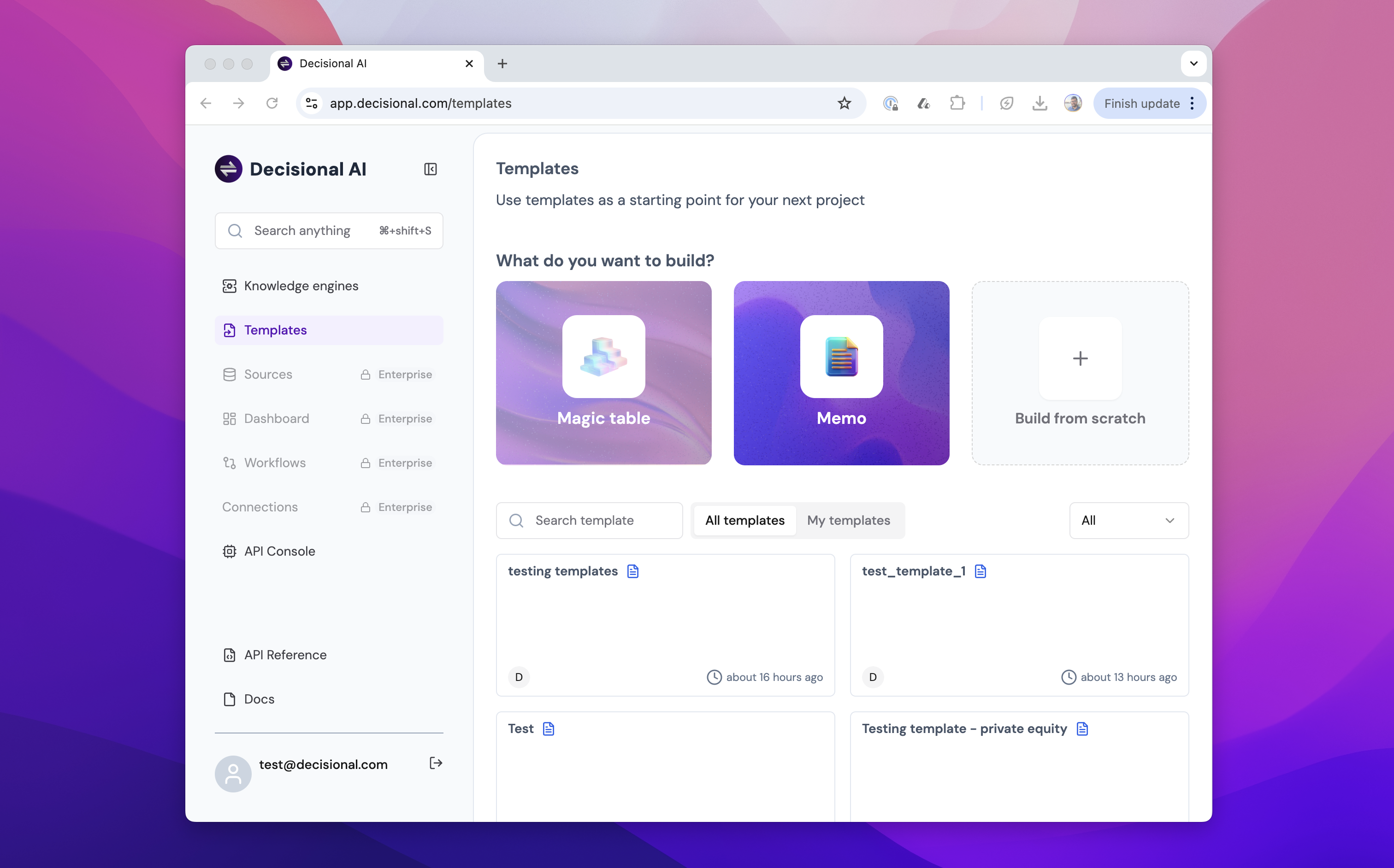 # Memo Templates
A memo template is useful when you have an outline or a format of the document you need. You can create and save this in a template that can be re-used inside any [knowledge engine](https://docs.getdecisional.ai/welcome/knowledge-engines).
## Creating a memo template
Steps to follow for **creating a Memo Template:**
1. Visit [https://app.decisional.com/templates](https://app.decisional.com/templates) or use `Templates` in the left navigation on the home page
2. Choose the Build from Scratch option
3. Select Memo
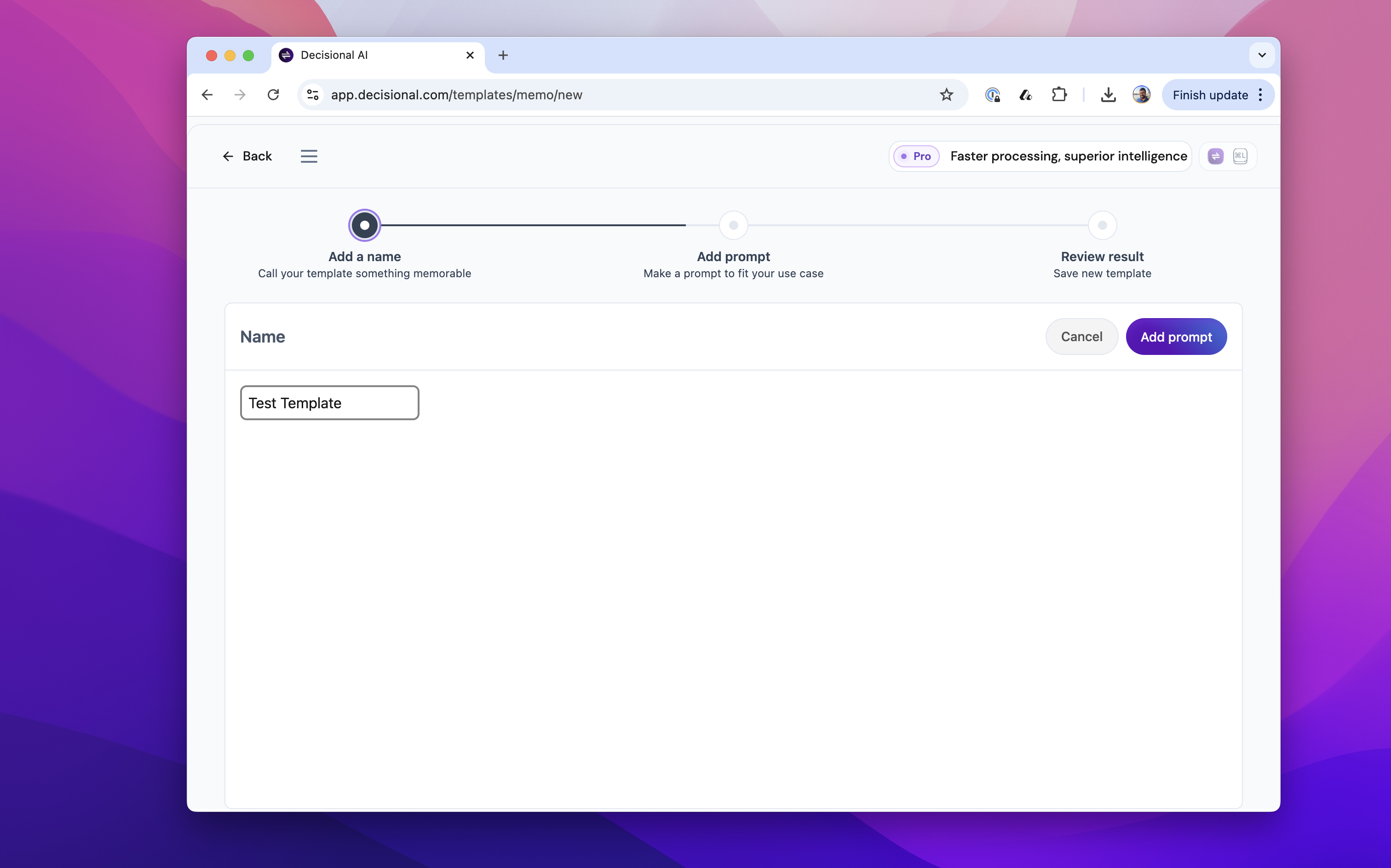
4. Name your template and choose the `Add Prompt` option
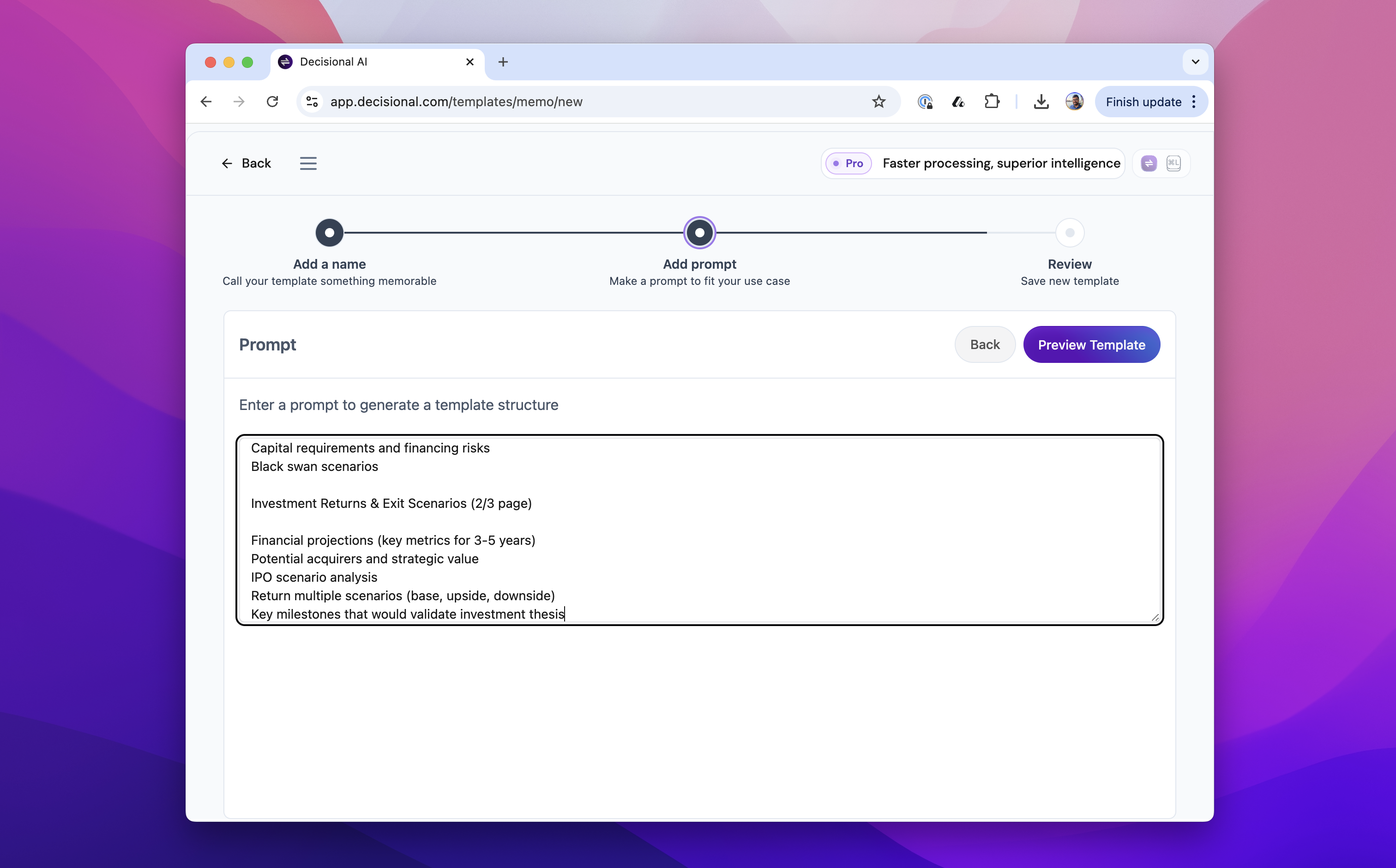
5. Enter a prompt that covers the format, sections and how you would like the memo template to be generated
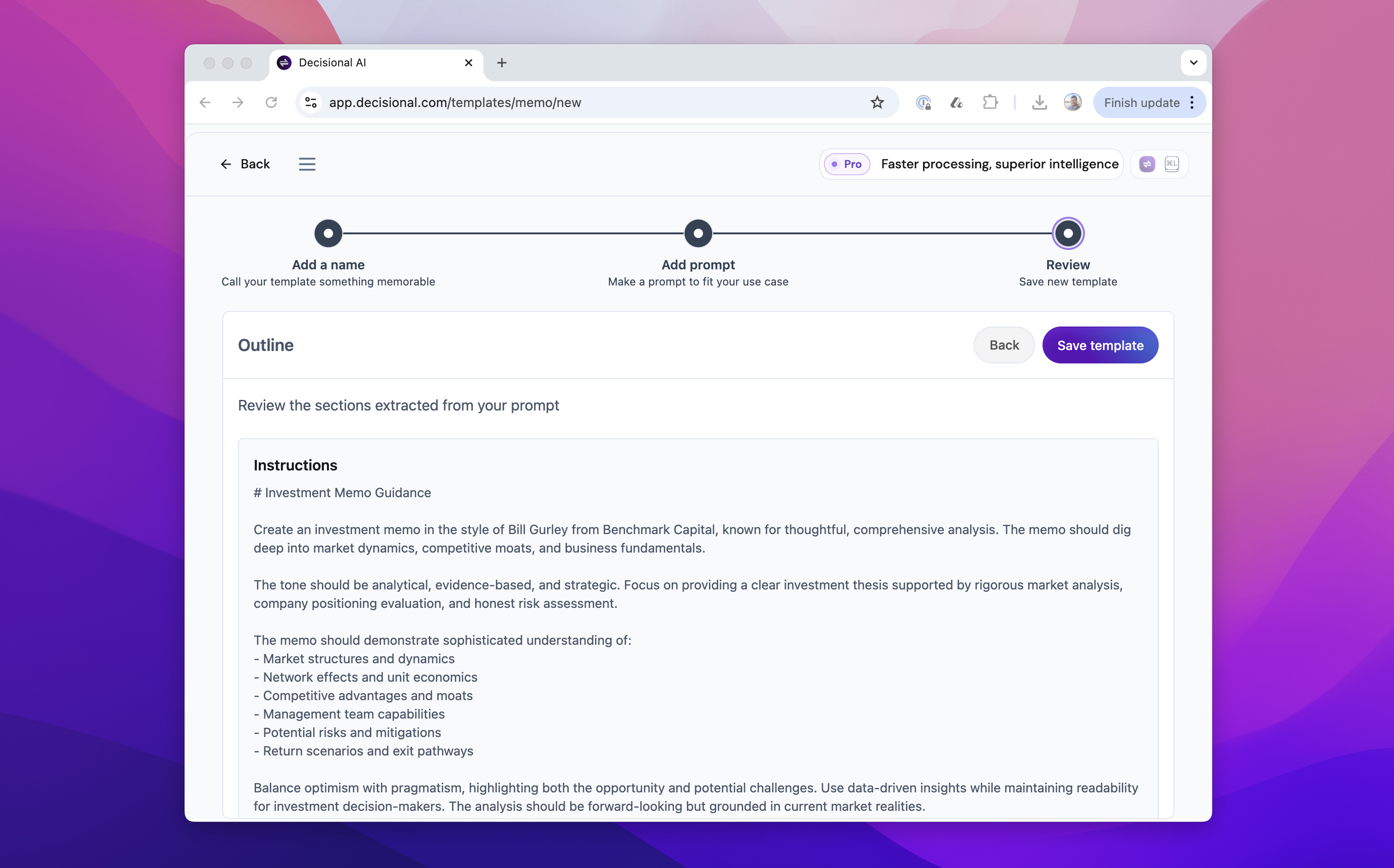
6. Select Preview Result and wait for the outline of the memo template
### Naming the template
###
# Memo Templates
A memo template is useful when you have an outline or a format of the document you need. You can create and save this in a template that can be re-used inside any [knowledge engine](https://docs.getdecisional.ai/welcome/knowledge-engines).
## Creating a memo template
Steps to follow for **creating a Memo Template:**
1. Visit [https://app.decisional.com/templates](https://app.decisional.com/templates) or use `Templates` in the left navigation on the home page
2. Choose the Build from Scratch option
3. Select Memo
4. Name your template and choose the `Add Prompt` option
5. Enter a prompt that covers the format, sections and how you would like the memo template to be generated
6. Select Preview Result and wait for the outline of the memo template
### Naming the template
###  ### Adding your Prompt
###
### Adding your Prompt
###  ### Preview & save the memo outline
 ## Generating a memo from a memo template
1. Steps to follow for **generating** **a memo from a template:**
2. Visit the knowledge engine that has the sources on which you want to run the template
3. Choose Create New on the top right corner
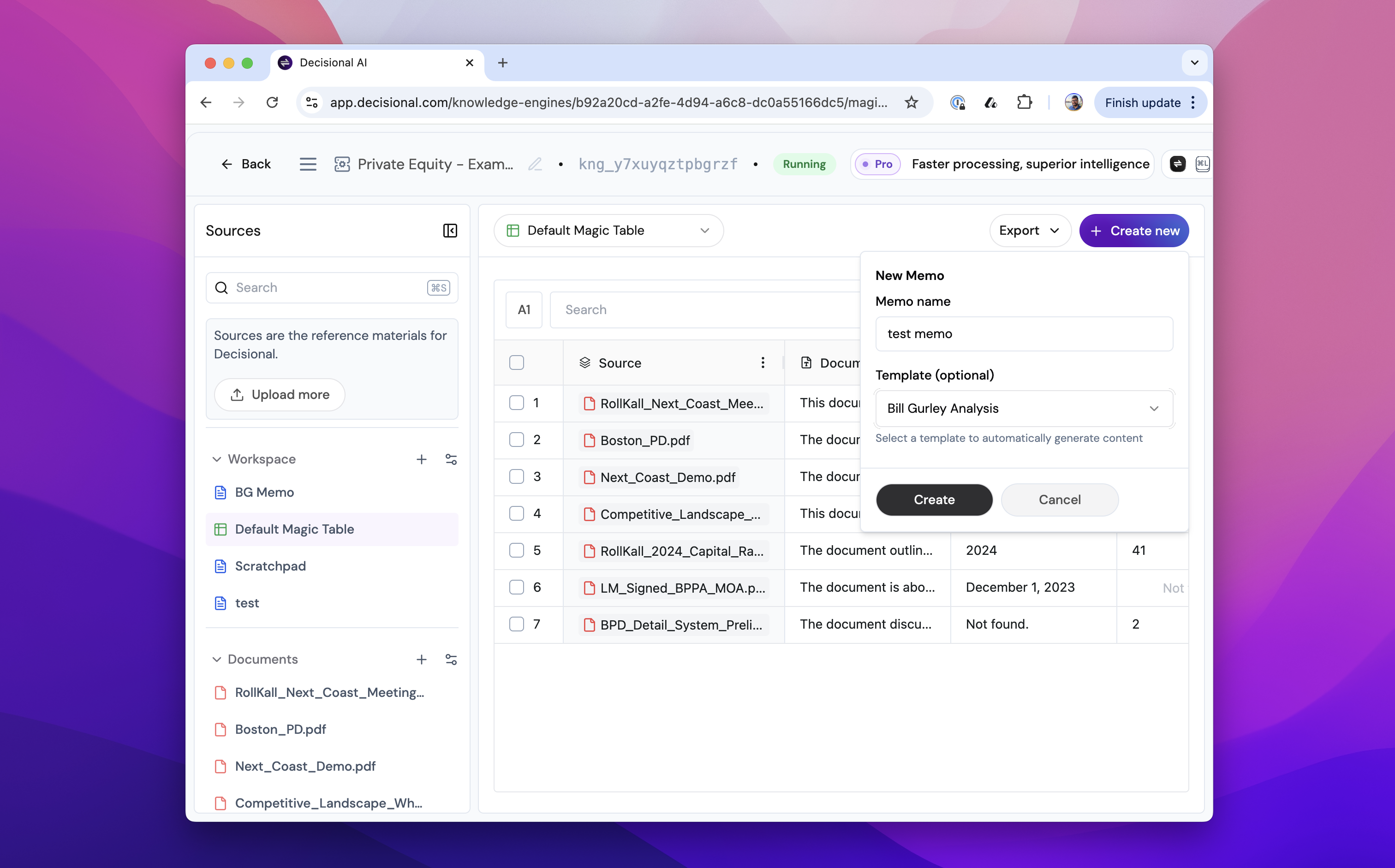
4. Choose Memo and select the template from the drop down
### Choose the template
## Generating a memo from a memo template
1. Steps to follow for **generating** **a memo from a template:**
2. Visit the knowledge engine that has the sources on which you want to run the template
3. Choose Create New on the top right corner
4. Choose Memo and select the template from the drop down
### Choose the template
 ### Generate the memo
While the memo is being generated the outline will show up on screen. It will take a few minutes so you can view the progress as the blocks get loaded.
### Generate the memo
While the memo is being generated the outline will show up on screen. It will take a few minutes so you can view the progress as the blocks get loaded.